
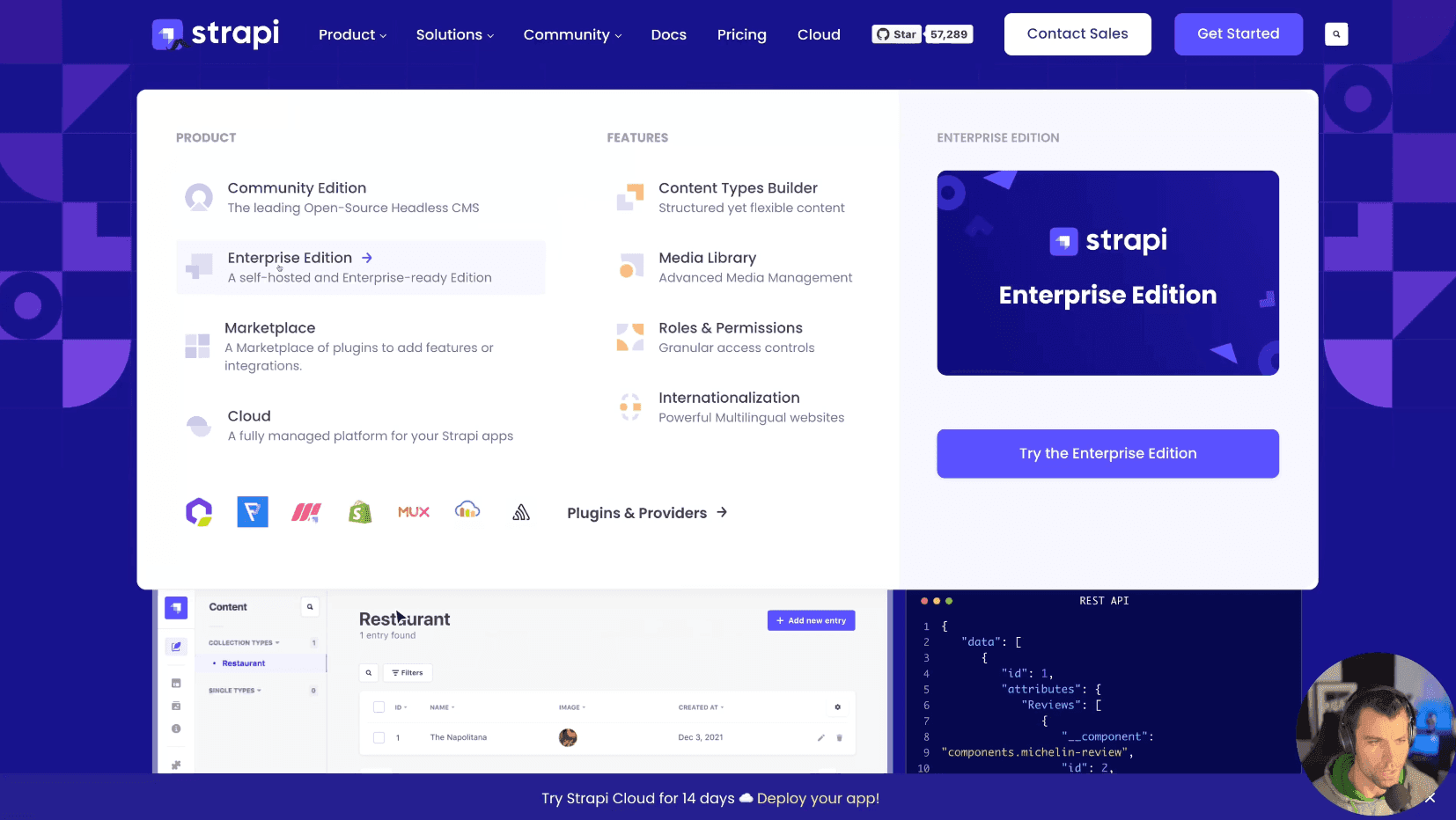
In this article, we'll explore how to create a dynamic website menu by leveraging Strapi, an open-source, Node.js based, headless CMS. Strapi is a fantastic platform for developing APIs quickly, which is perfect for feeding data to your website's front end. We'll walk through building a menu similar to Strapi's own, featuring drop-downs, headings, links, and buttons.
Setup
To begin, please ensure that you have a fresh Strapi v4 project up and running. We're going to create sections first, these will each form part of the large drop-down in the menu above. We will then create individual links and buttons.
Creating Sections as Collection Types in Strapi
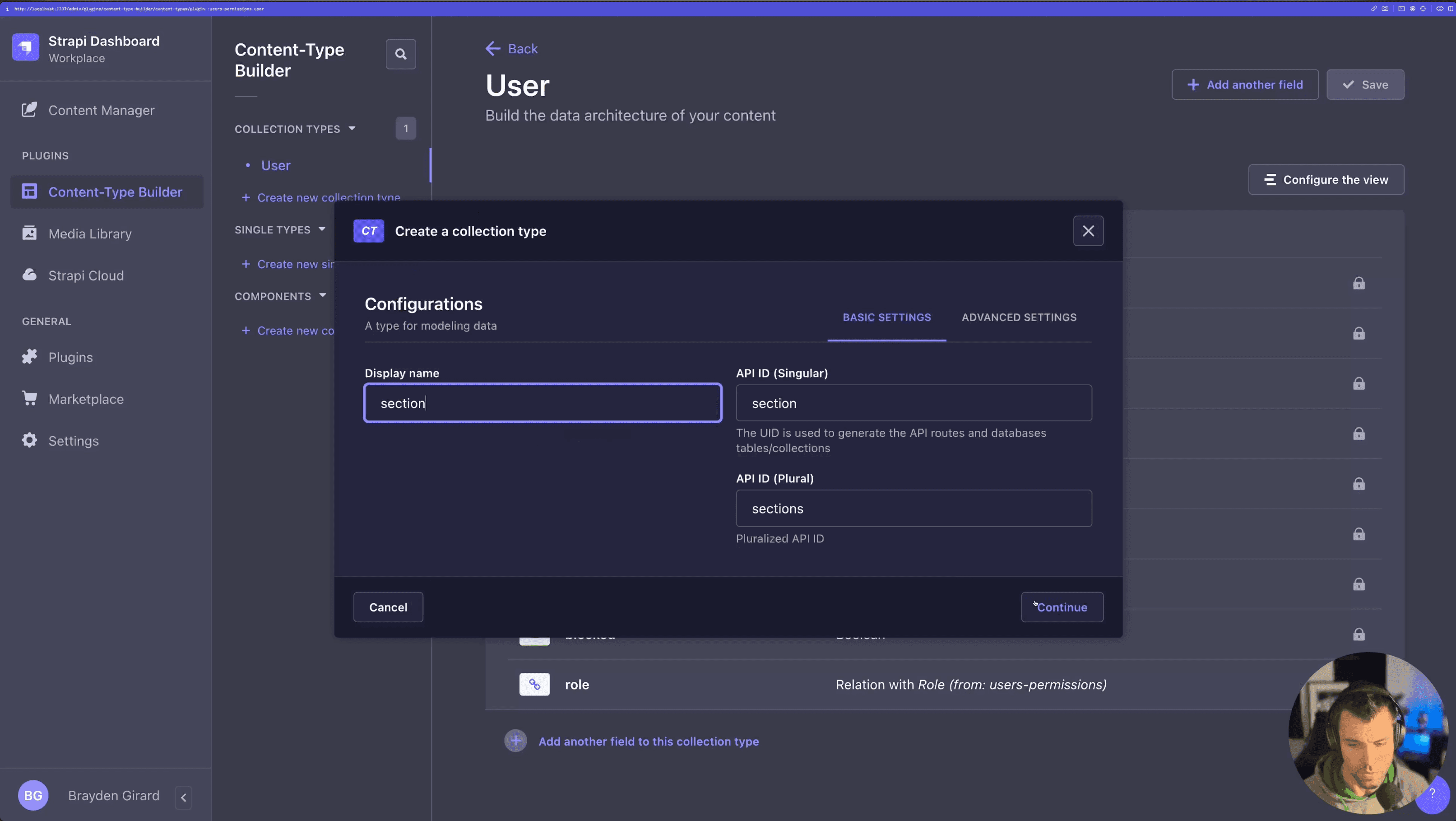
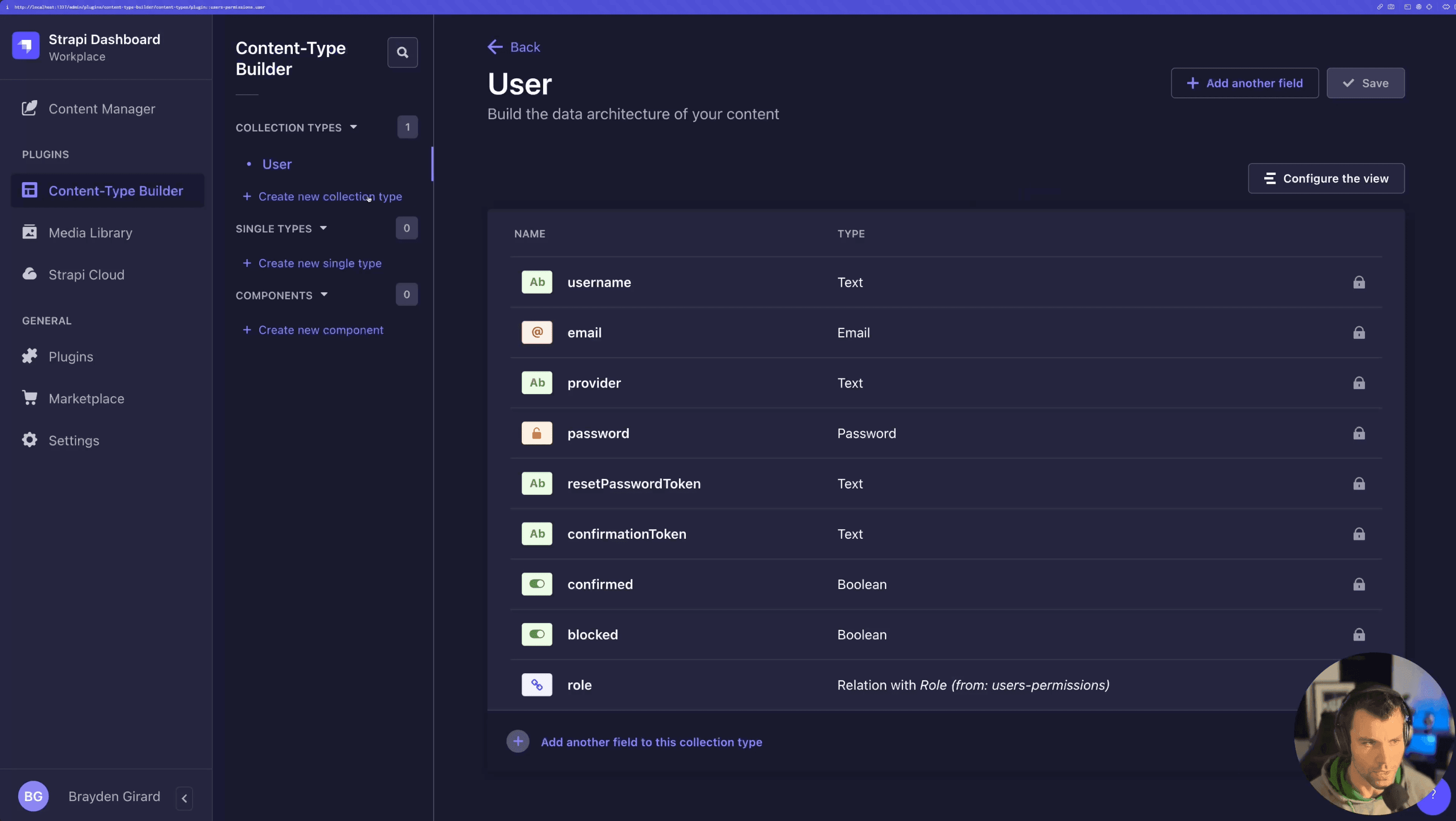
Navigate to the "Collection Types" in Strapi Admin and create a new one. Let's call it Section. In each section, we'll need a heading (the title to appear at the top) and a Links component (to be created shortly) encapsulating all the links inside the section.
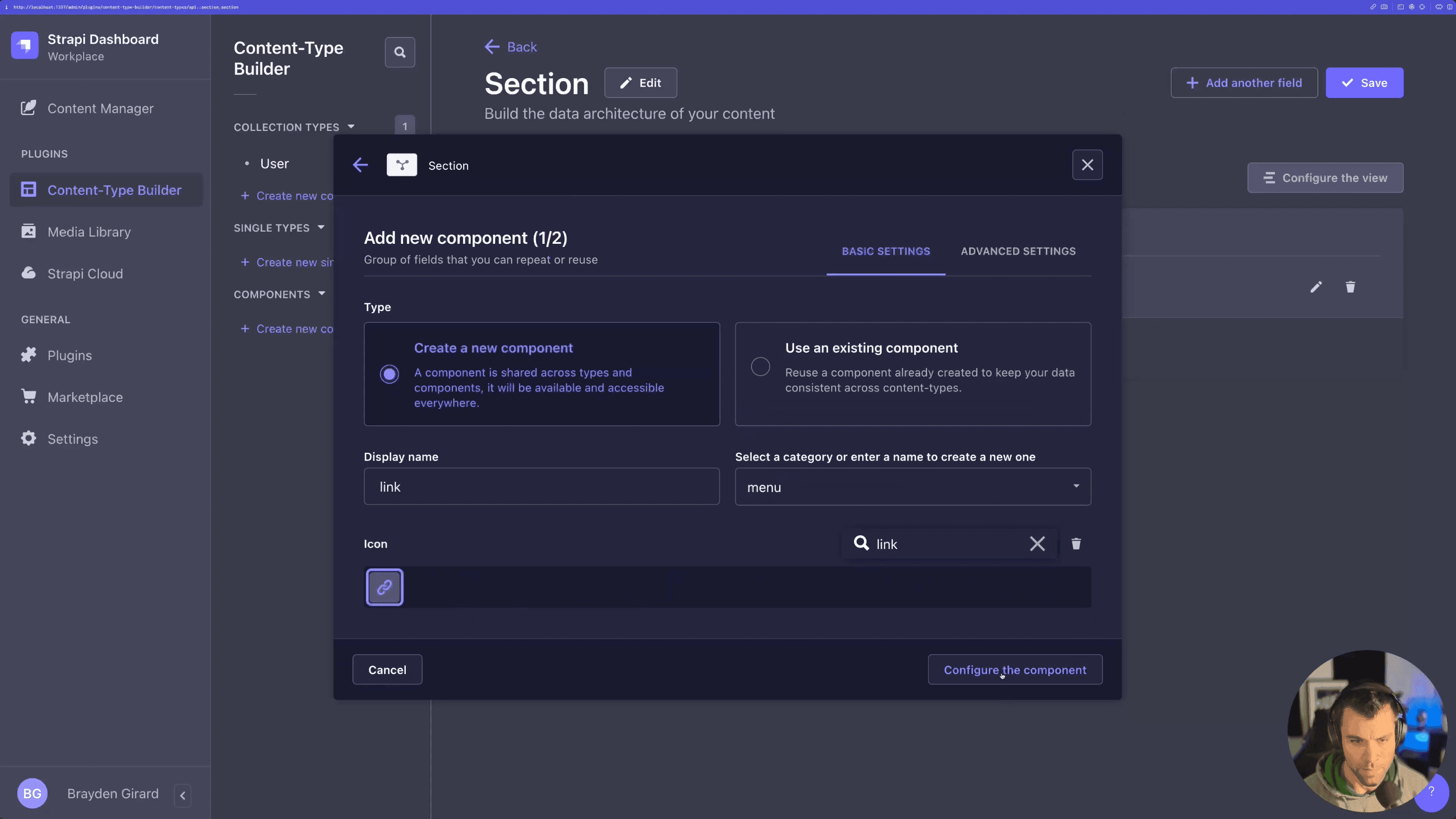
While still creating the Section, add a component and name it Link. Create a category to place this component in, the category name does not matter. The component will be created as a repeatable component and should contain a name for the link and a URL for its destination.
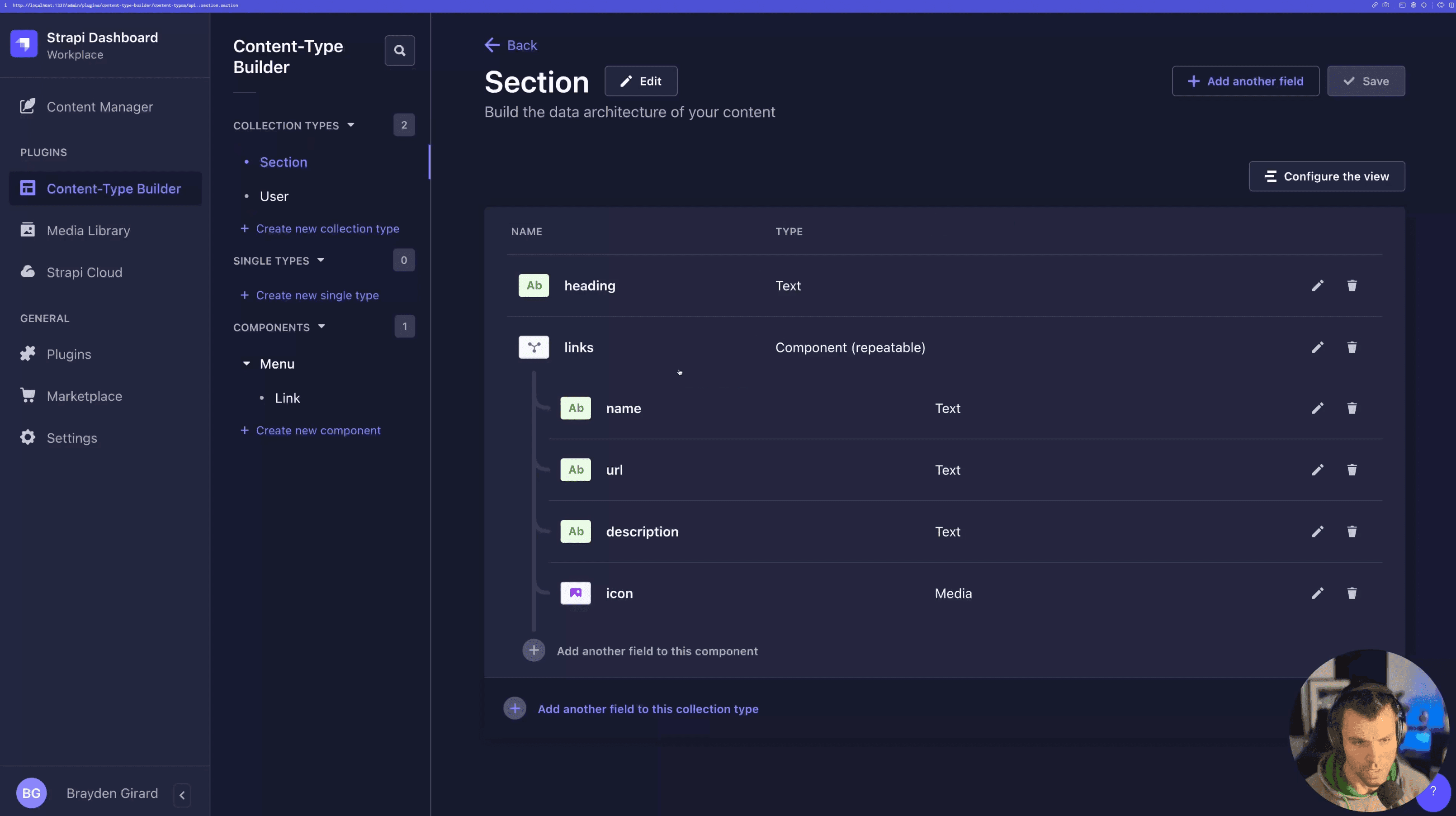
Additionally, we're going to add two fields: a text (long) type for description and an icon, which is an image (single-type media).
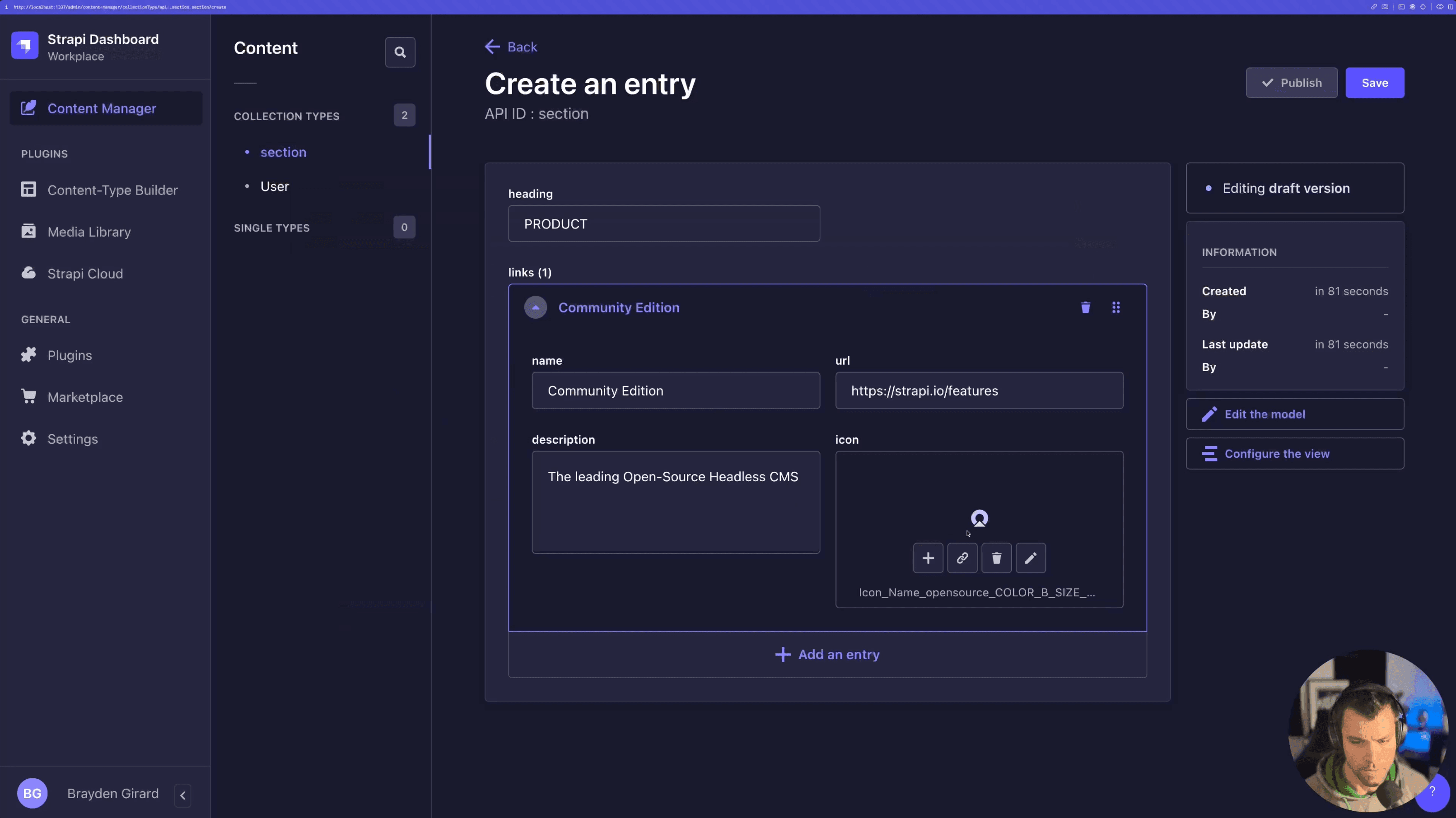
Hit Save. You can now go ahead and create several sections under the newly created Section collection by creating a section and adding links to it.
Creating Additional Components
Now that we have created a Section with internally nested Link components, let's create menu links, buttons, and drop downs. Menu links are straightforward additions for the top bar, buttons add interactivity, and dropdown menus improve organization by allowing us to group links based on themes or content.
Creating the Dropdown Component
A dropdown menu houses multiple sections. In the Components area of Strapi's admin, create a new component, name it Dropdown, and place it under the Menu category. Add a title field and a Relation field linked to Sections. Set the relation as 'has many sections', which means a dropdown can contain multiple sections.
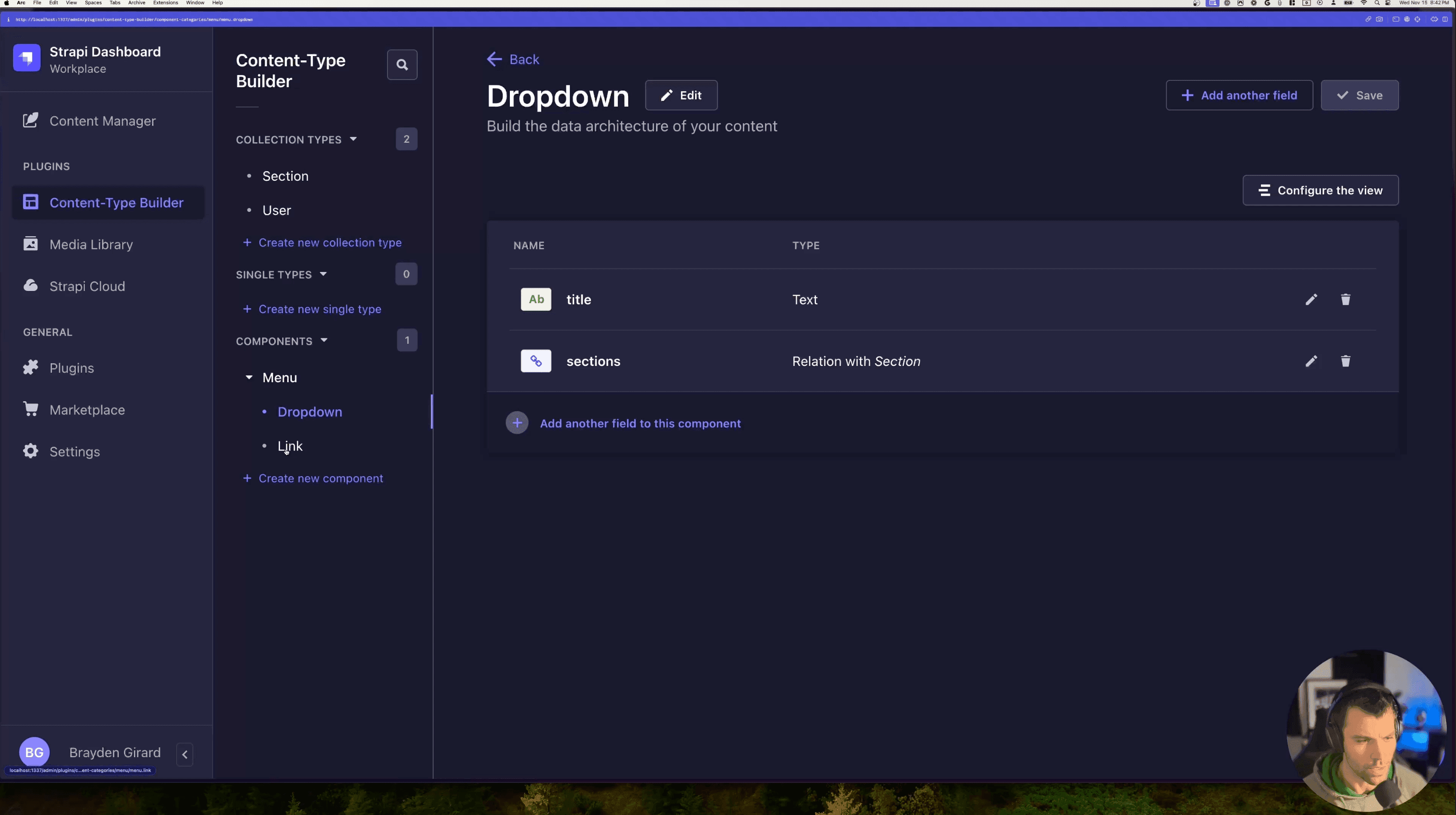
A dropdown menu houses multiple sections. In the Components area of Strapi's admin, create a new component, name it Dropdown, and place it under the Menu category. Add a title field and a Relation field linked to Sections. Set the relation as 'has many sections', which means a dropdown can contain multiple sections.
Creating the Menu Link Component
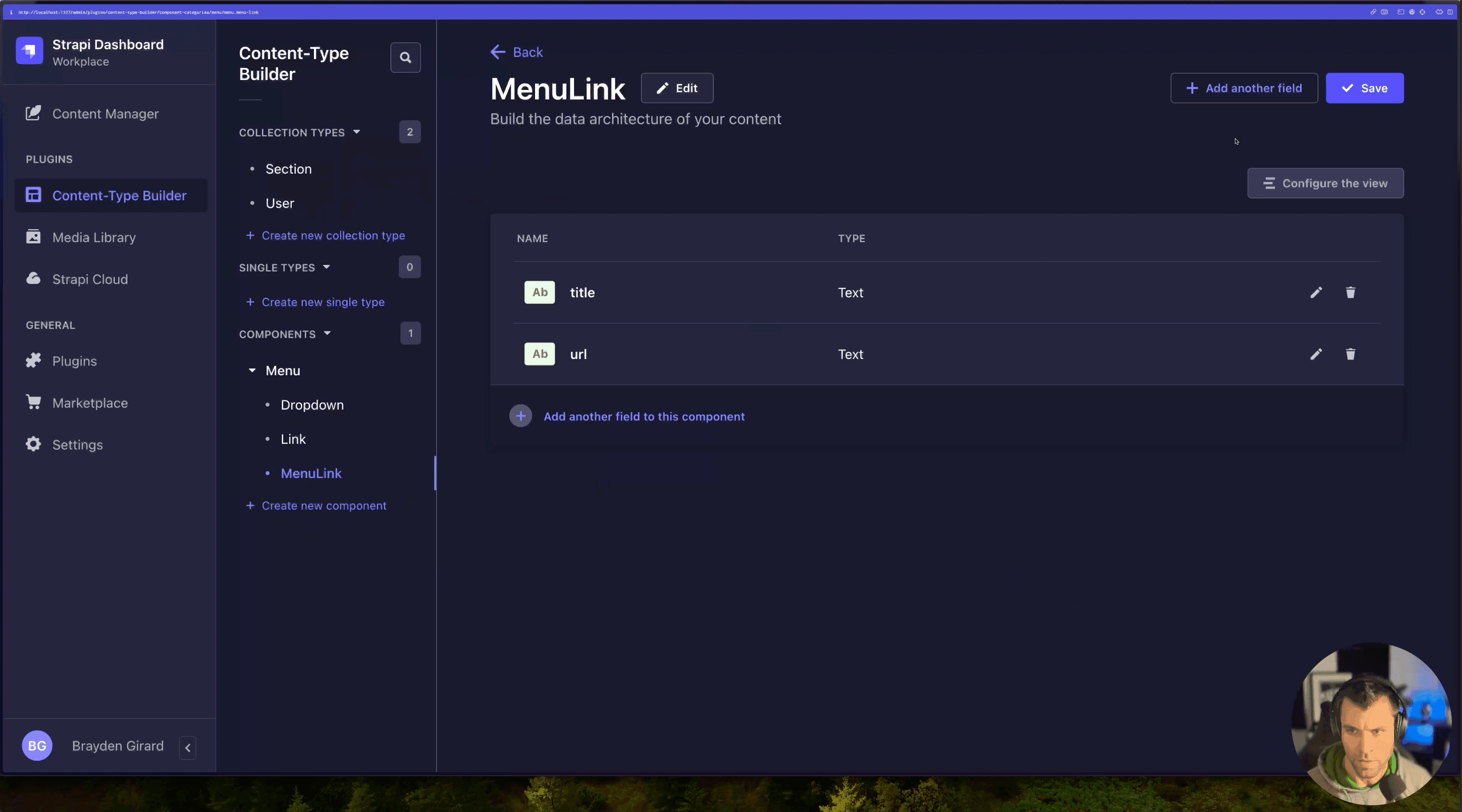
Next, let's create menu links. Call this component Menu Link, and place it under the Menu category. Add title and URL fields to store the link's name and destination.
Creating the Button Component
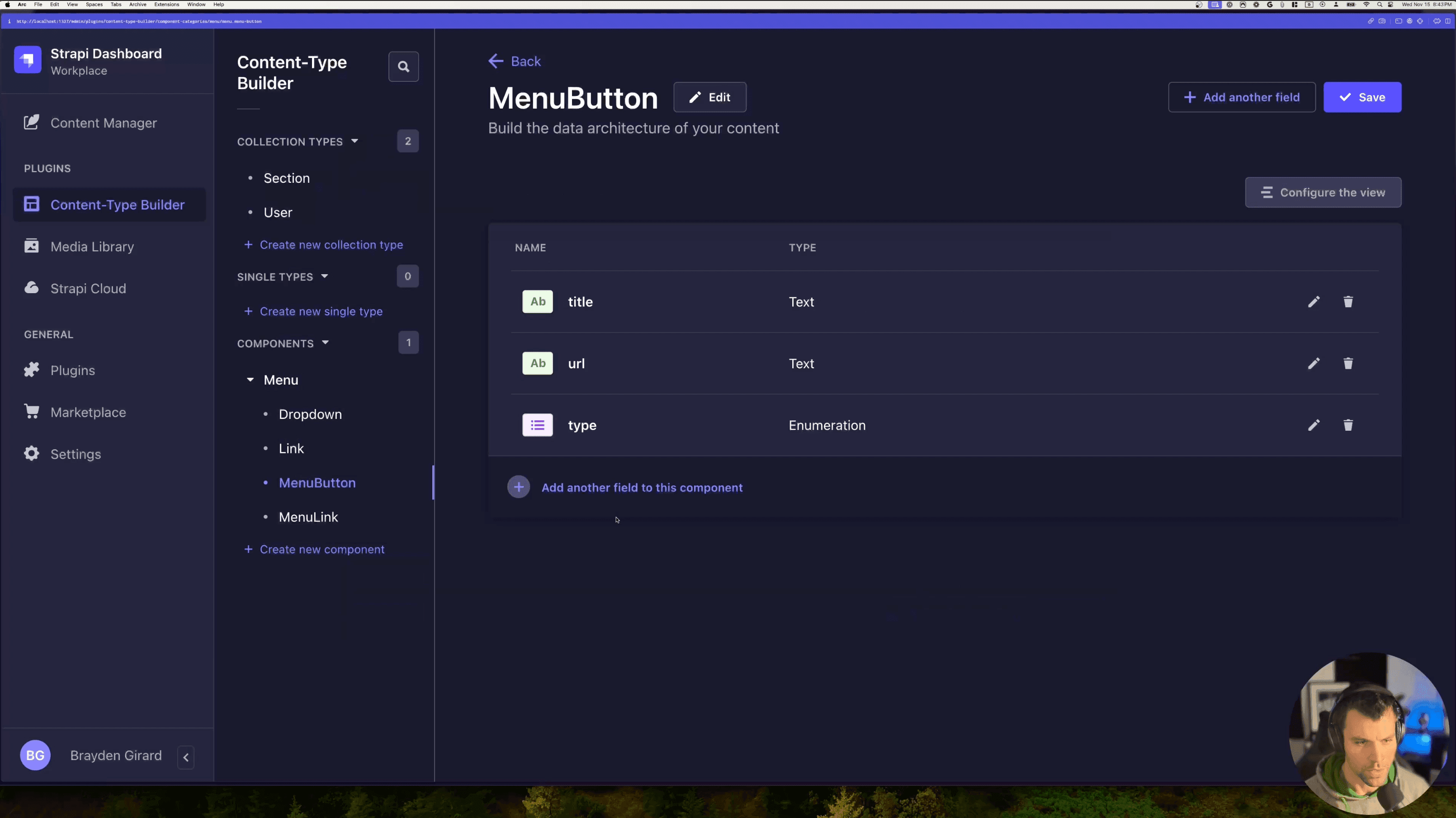
Finally, we'll create buttons for actions such as 'Sign Up', 'Contact Us', etc. Name this component Button, place it under the Menu category, and add a title and URL.
Additionally, let's add an enumeration field, Type. This field hosts classes to style the button on the front end. For instance, we can have a Primary or Secondary class, which alters the button's look.
Constructing the Menu
Now that we have all the building blocks in place, let's construct the menu.
Create a new single type called Main Menu. Inside it, add a Dynamic Zone named Main Menu Items. Add the components--Dropdown, Menu Link, and Button to this zone.
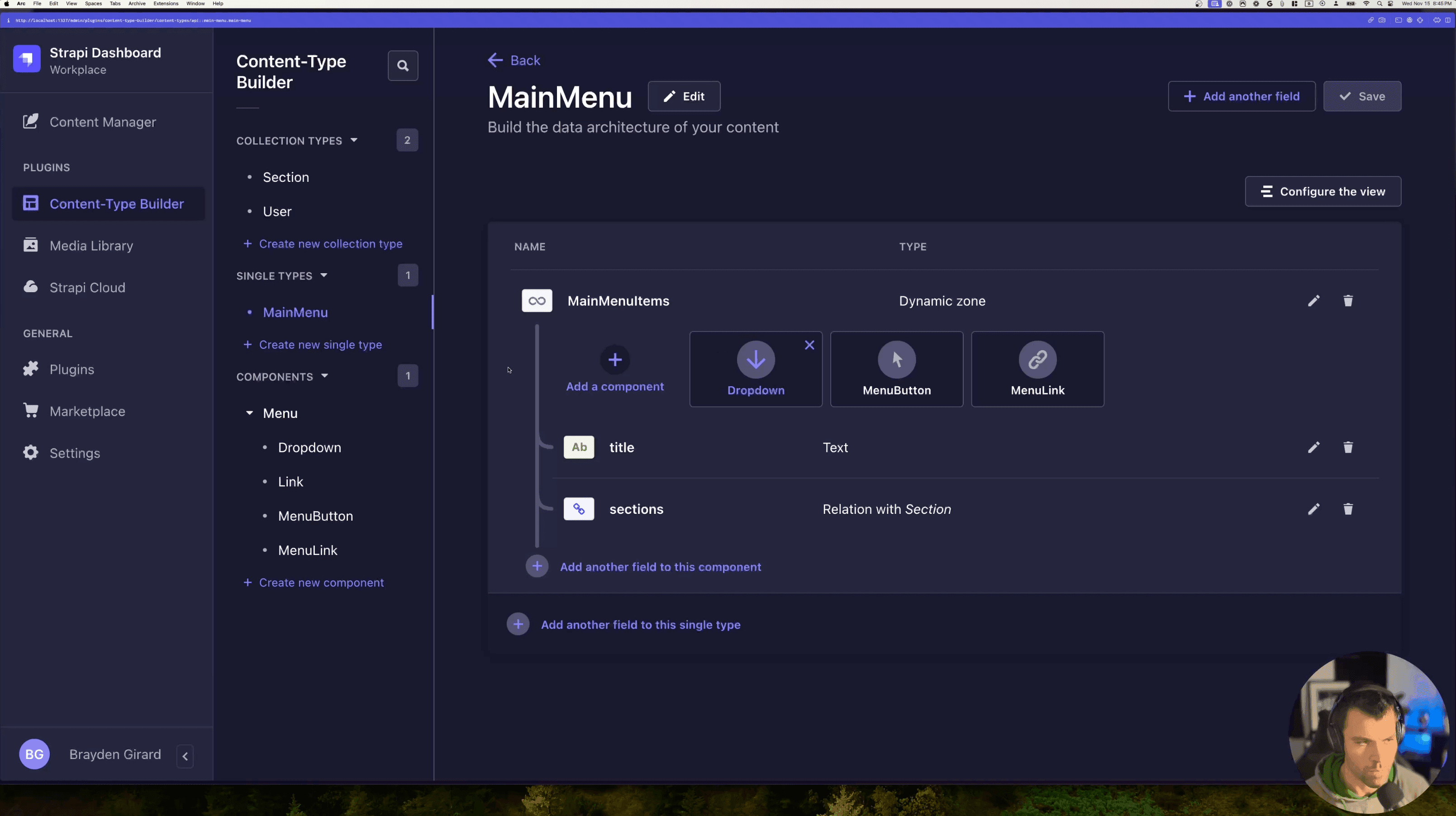
In the content manager, you can add all three types of components to the Main Menu Items Dynamic Zone.
The Dropdown can be given a title (like 'Product') and sections (like 'Product' and 'Features'). You can add multiple dropdowns, each with a title and related sections.
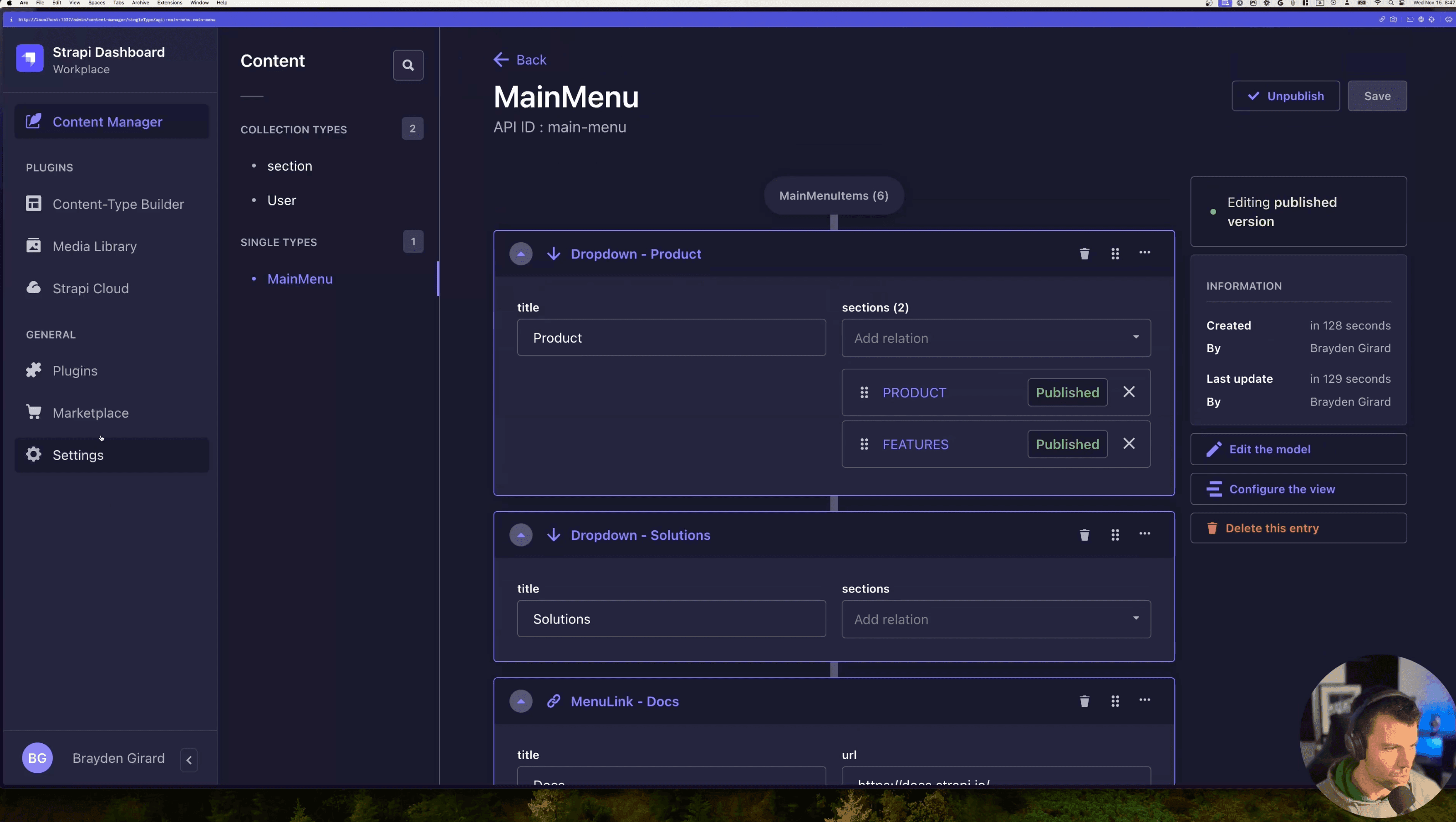
For Menu Links, you can add links like 'Docs' and 'Pricing' with their corresponding URLs.
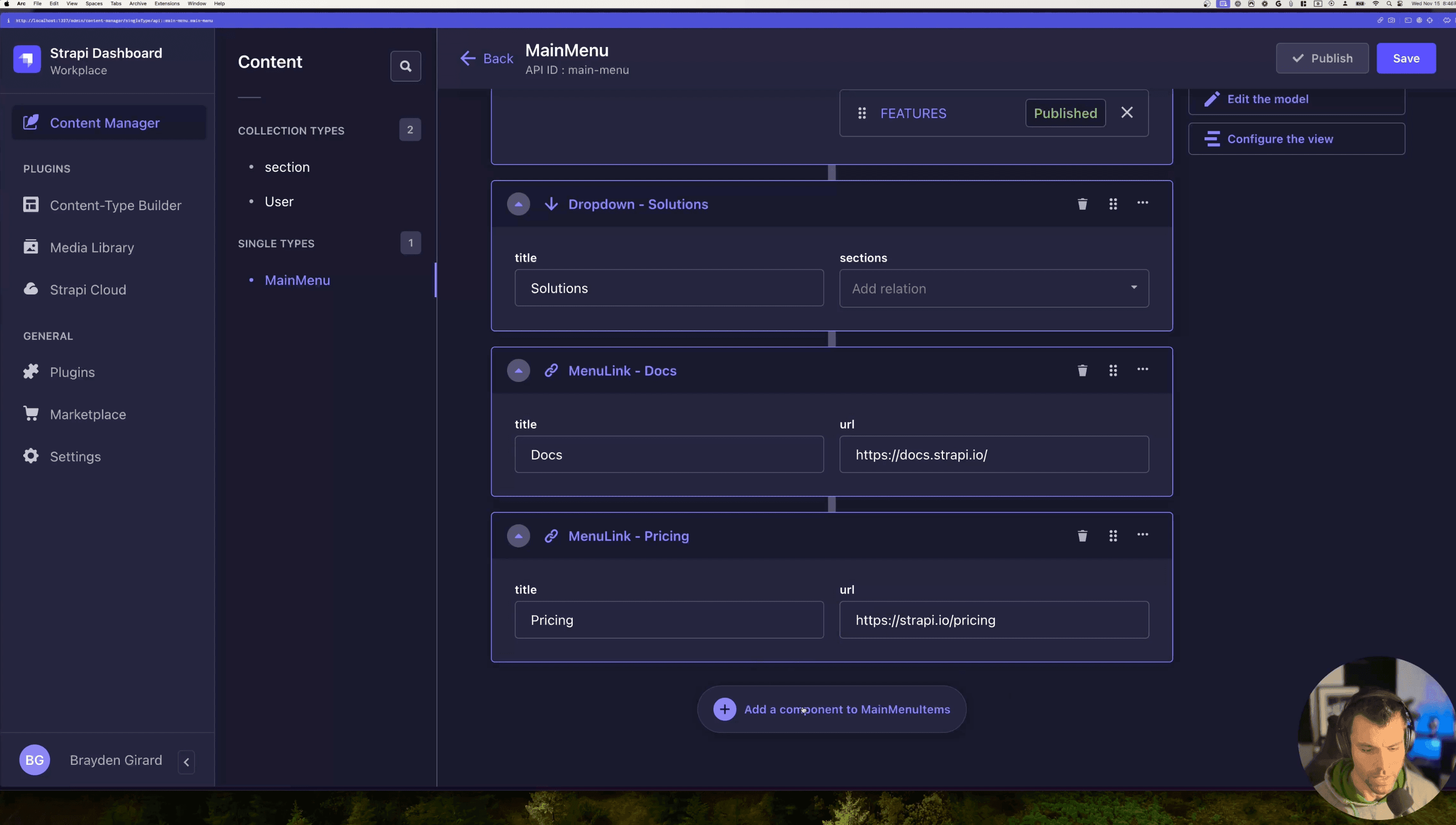
For the Button, you can create a button like 'Contact Sales' and provide a URL for it. Make sure to assign a class (Primary or Secondary) to it.
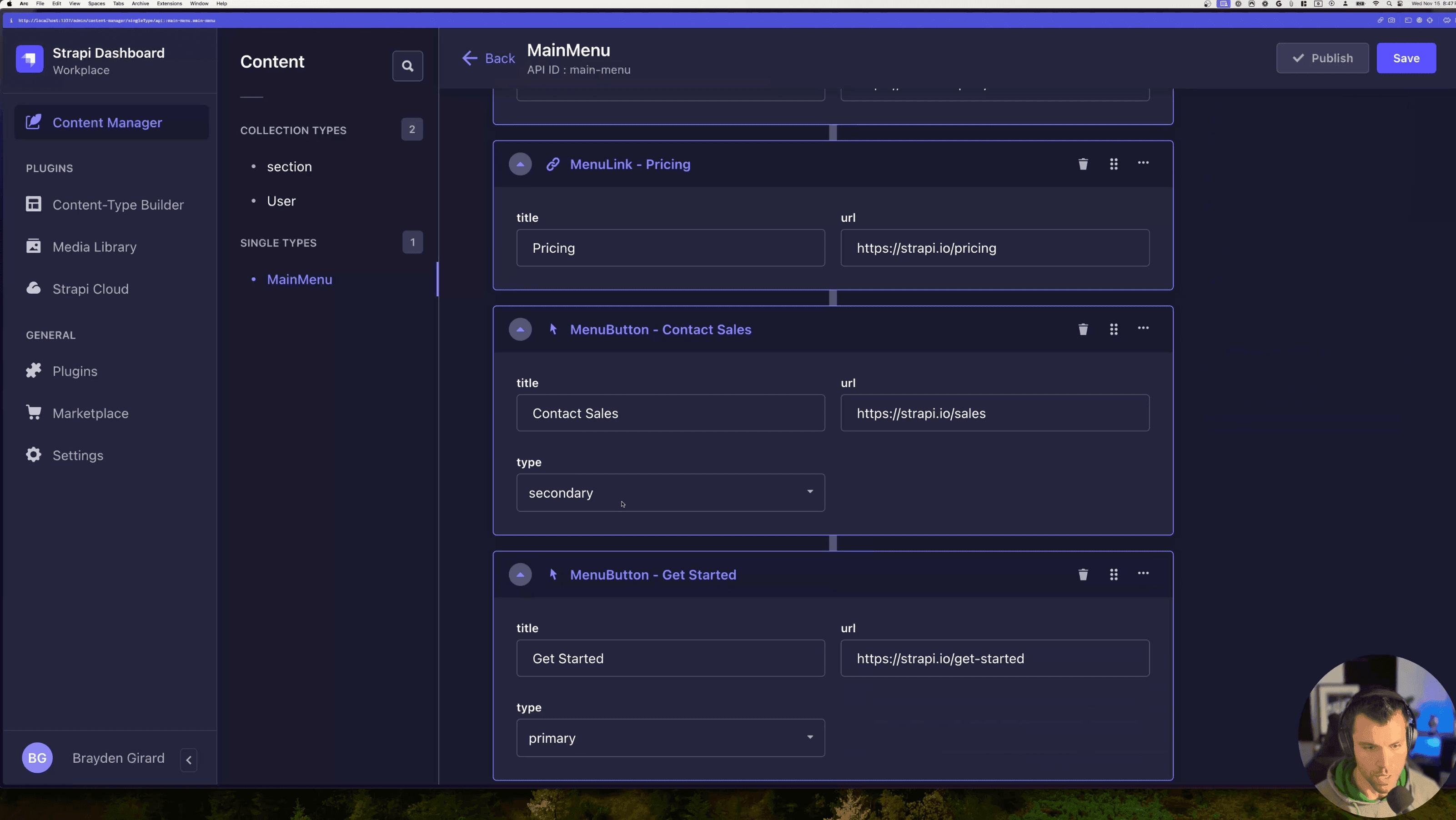
After adding all the sections, links, and buttons, save and publish your menu.
Generating the JSON Data for Front End Access
Once you have published your menu, you need to ensure that the data is accessible on the front end.
Navigate to Settings -> Roles & Permissions -> Public User, and allow Find for Main Menu and Sections. Save the settings.
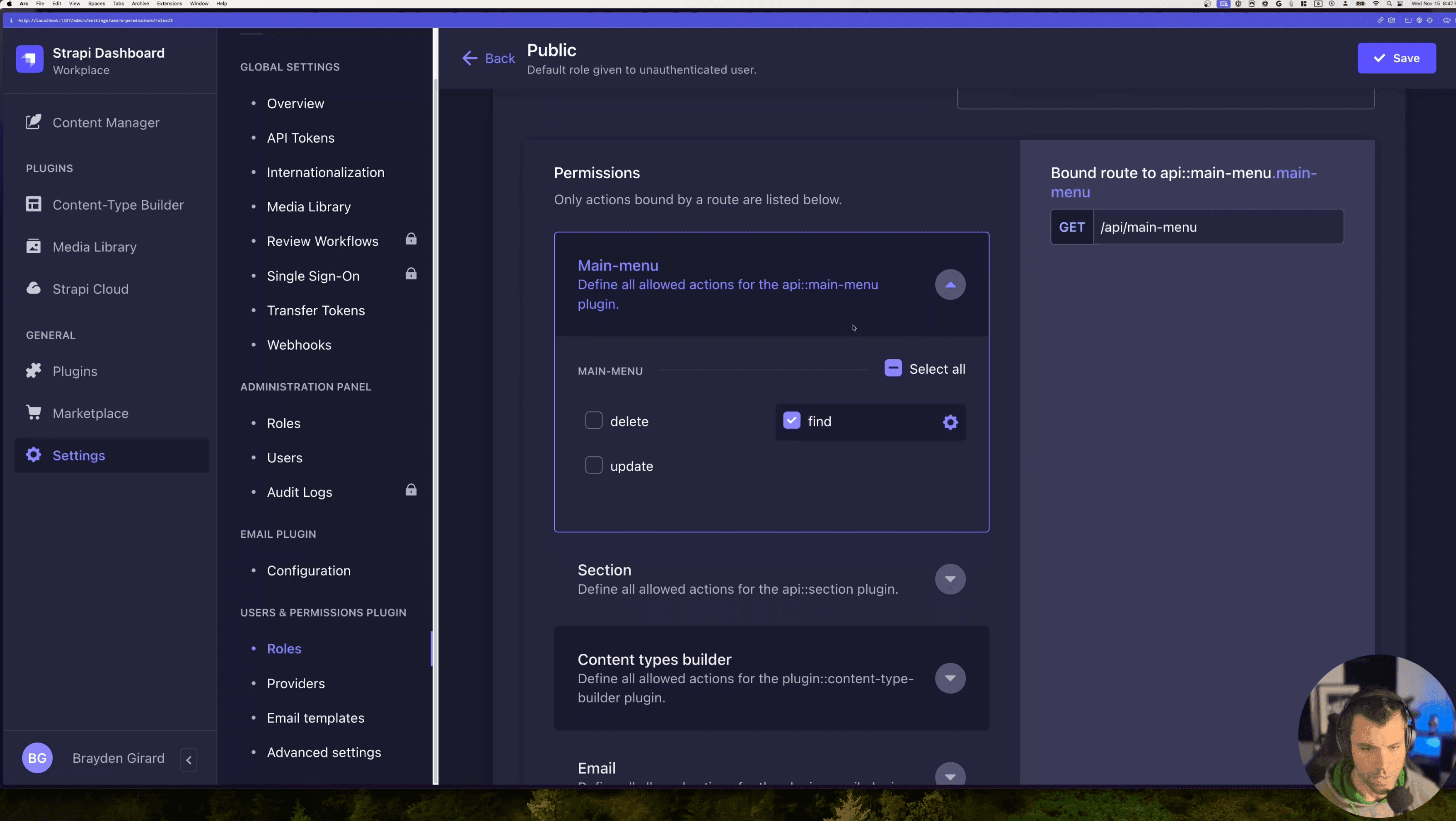
You can then access the menu configuration by making a get request to: https://localhost:1337/api/main-menu?populate[0]=MainMenultems&populate[1]=MainMenultems.sections&populate[2]=MainMenultems.sections.links
The data is returned in JSON format, which can be used to populate the content of your menu on the front end.
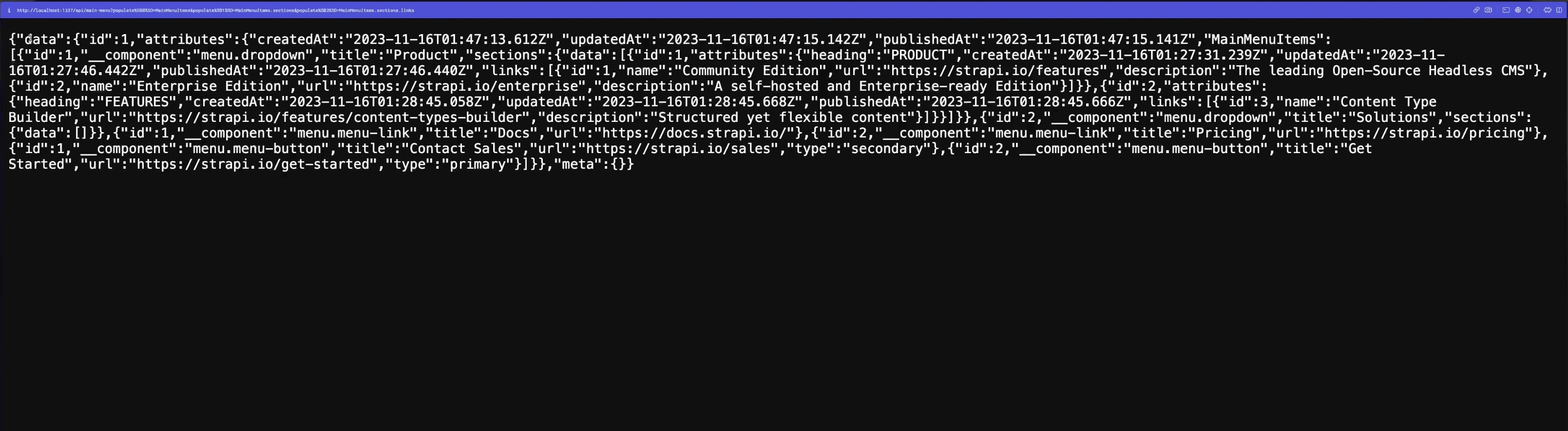
That’s it! By using Strapi, we've created a flexible system for building out a menu dynamically. This is one of many powerful features Strapi provides and is a testament to its capabilities as one of the rising stars in the CMS space.
Examples and Benefits of React and Strapi Menu Apps
Consider a bustling restaurant chain needing real-time menu updates. React and Strapi allow seamless updates, ensuring every customer sees the latest offerings. The flexibility and customization of React and Strapi offer unmatched benefits, including efficient content management and scalability for growing businesses.
Common Challenges and Solutions
Integration Complexity
Merge React and Strapi seamlessly by setting up APIs in Strapi and consuming them in React. Use libraries like Axios or Fetch for smooth data handling. Refer to Strapi's documentation for guidance.
Performance Optimization
Optimize React components with lazy loading and memoization. Ensure efficient Strapi APIs using pagination and limiting data fields. This keeps your app fast and responsive.
Ensuring Security
Strapi’s roles and permissions feature controls access. Implement authentication strategies like JWT or OAuth in React. Explore Strapi’s roles and permissions.
Customization Limitations
Customize React components to fit your brand’s style. Strapi’s plugin system extends functionality as needed. Visit Strapi's marketplace for plugins.
Combining React with Strapi creates a sophisticated, responsive menu application. This stack offers a scalable, flexible solution that grows with your business, providing efficient content management and enhanced user experiences. By following these steps, you can build a dynamic menu app that meets your unique needs. For a visual walkthrough, check out this video.